Product

Views and organization

The same work as a list, calendar, kanban, timeline or map. Everyone sees what they need, the way they need it.

Five ways to see the same work

They all show the same work orders, with the same filters. You switch views without losing what you filtered.

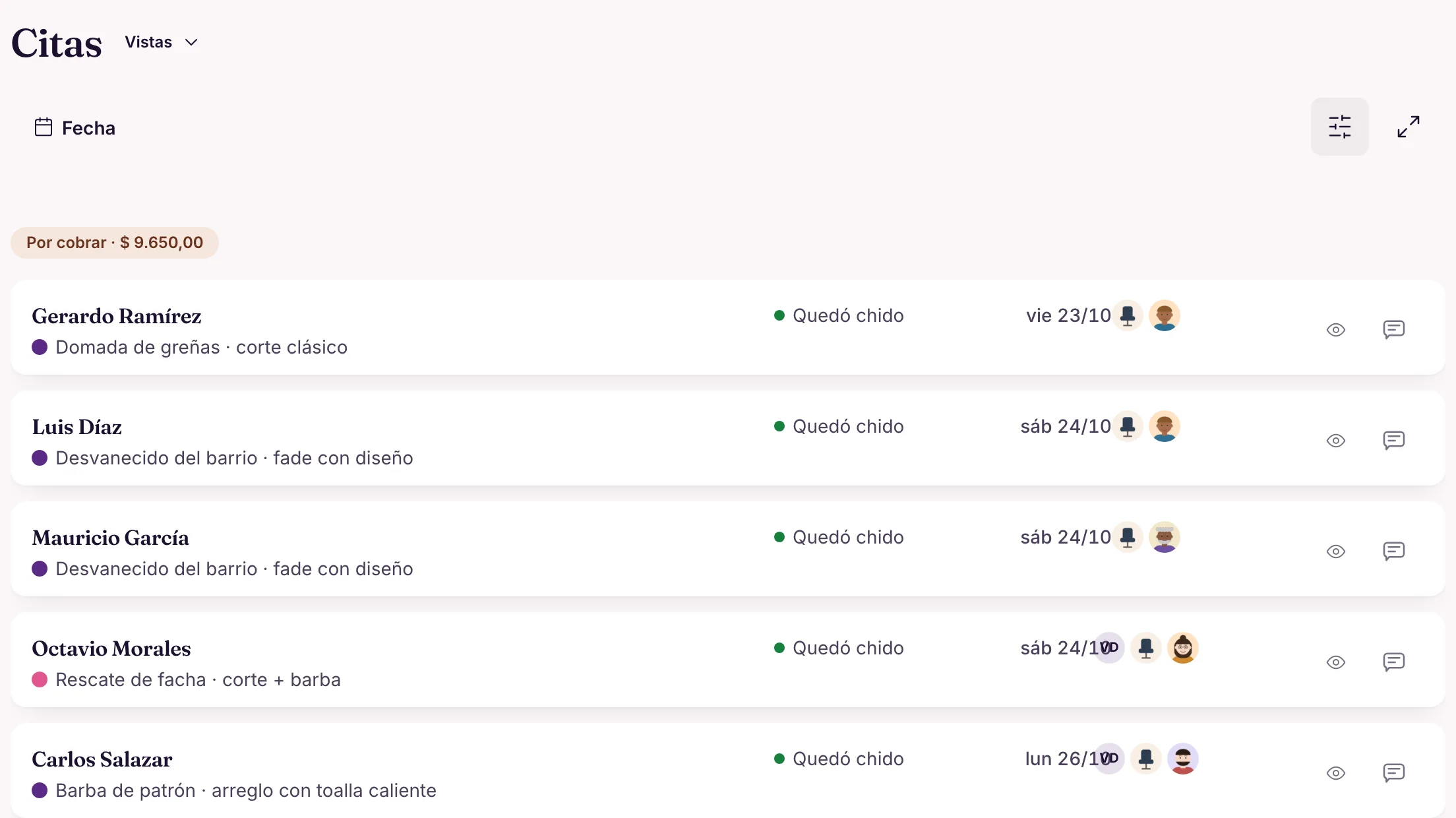
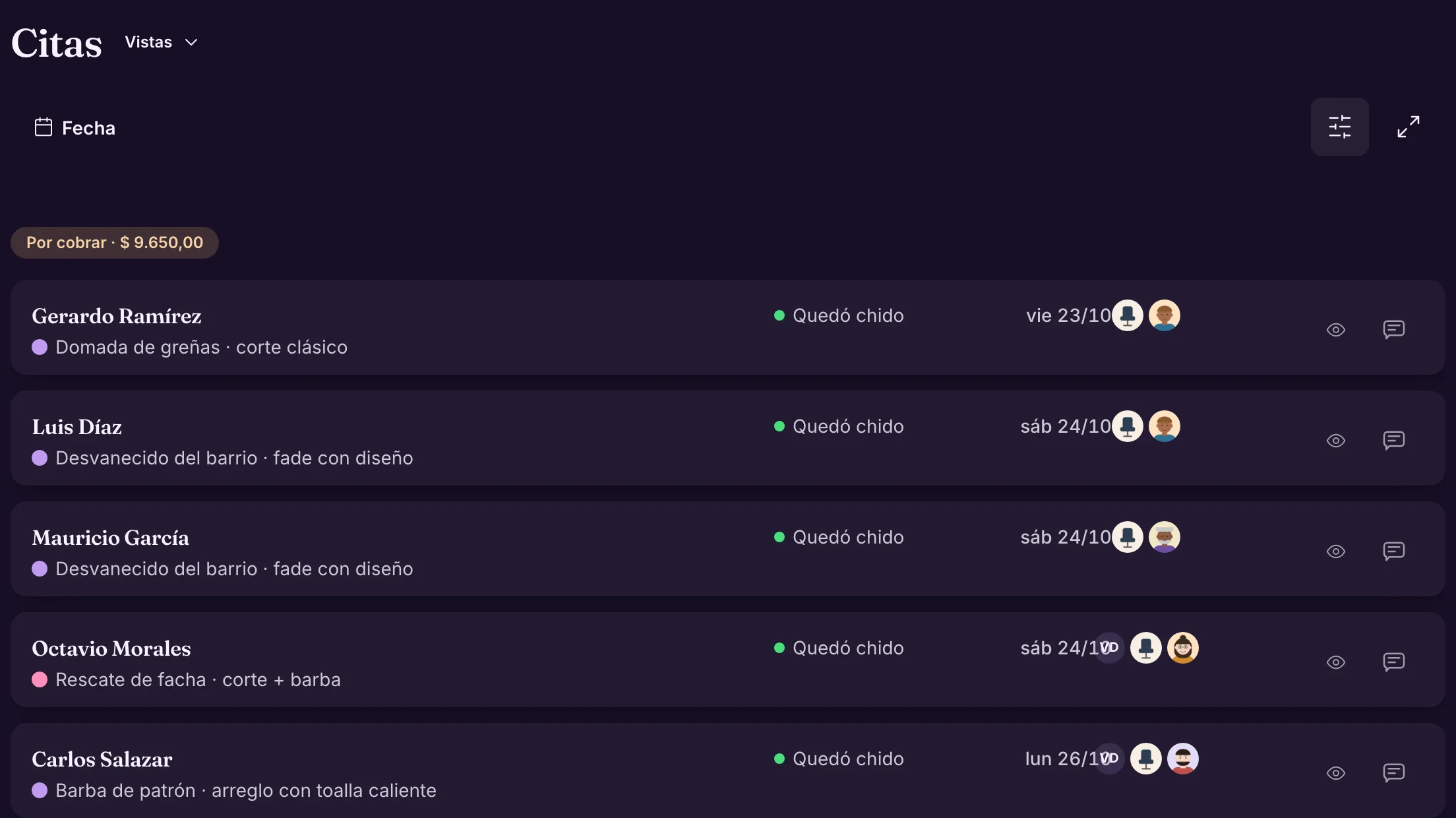
List

All work orders in one list, grouped by status, day, stage, assignee, service, customer or tag, and sorted however you like.

It's the everyday view: what comes in, what's missing and what's already delivered, without opening anything.

Example Ateliê Flor de Sal groups by status and sees all the orders ready for pickup at once.

More in the docs →
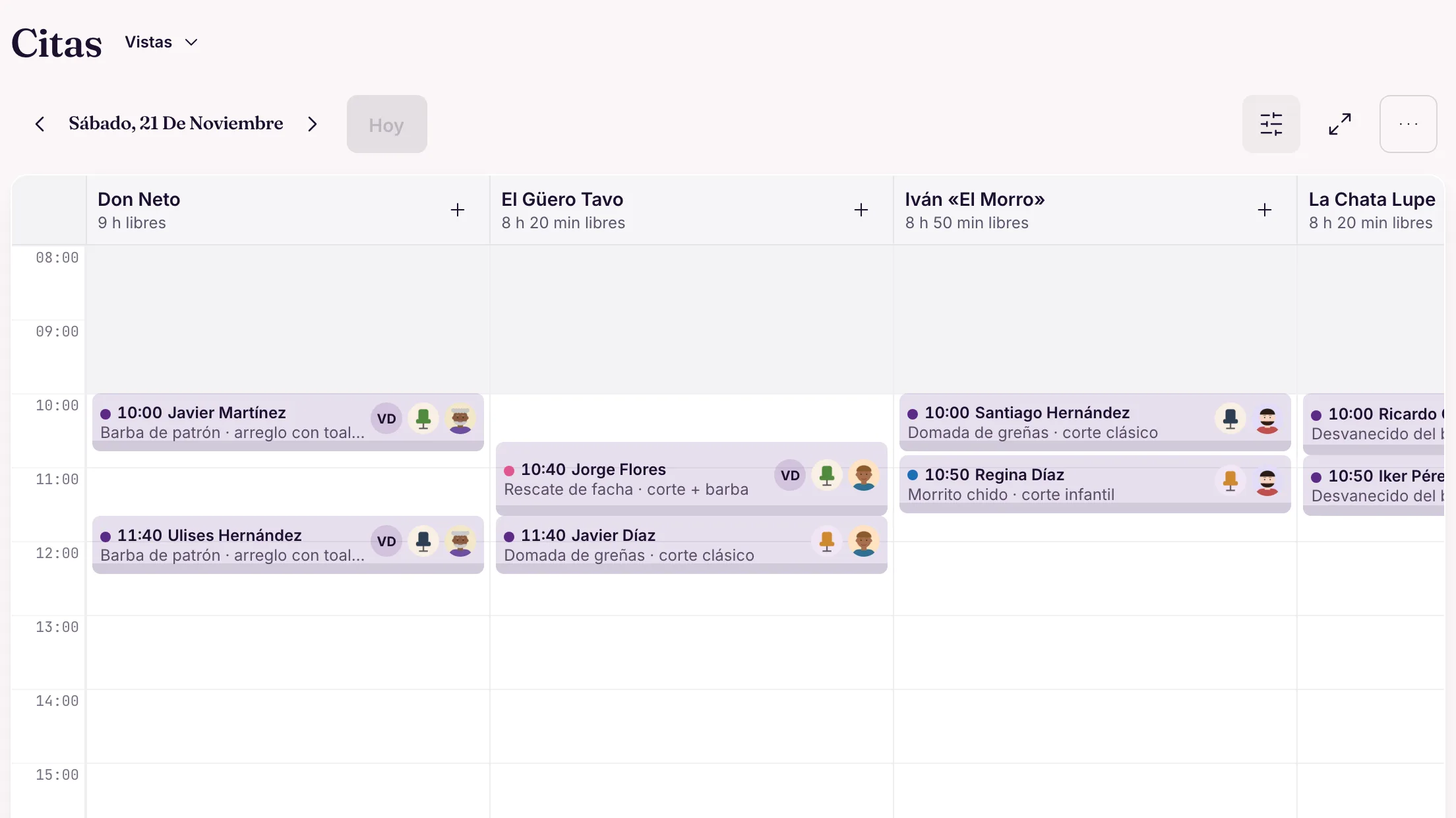
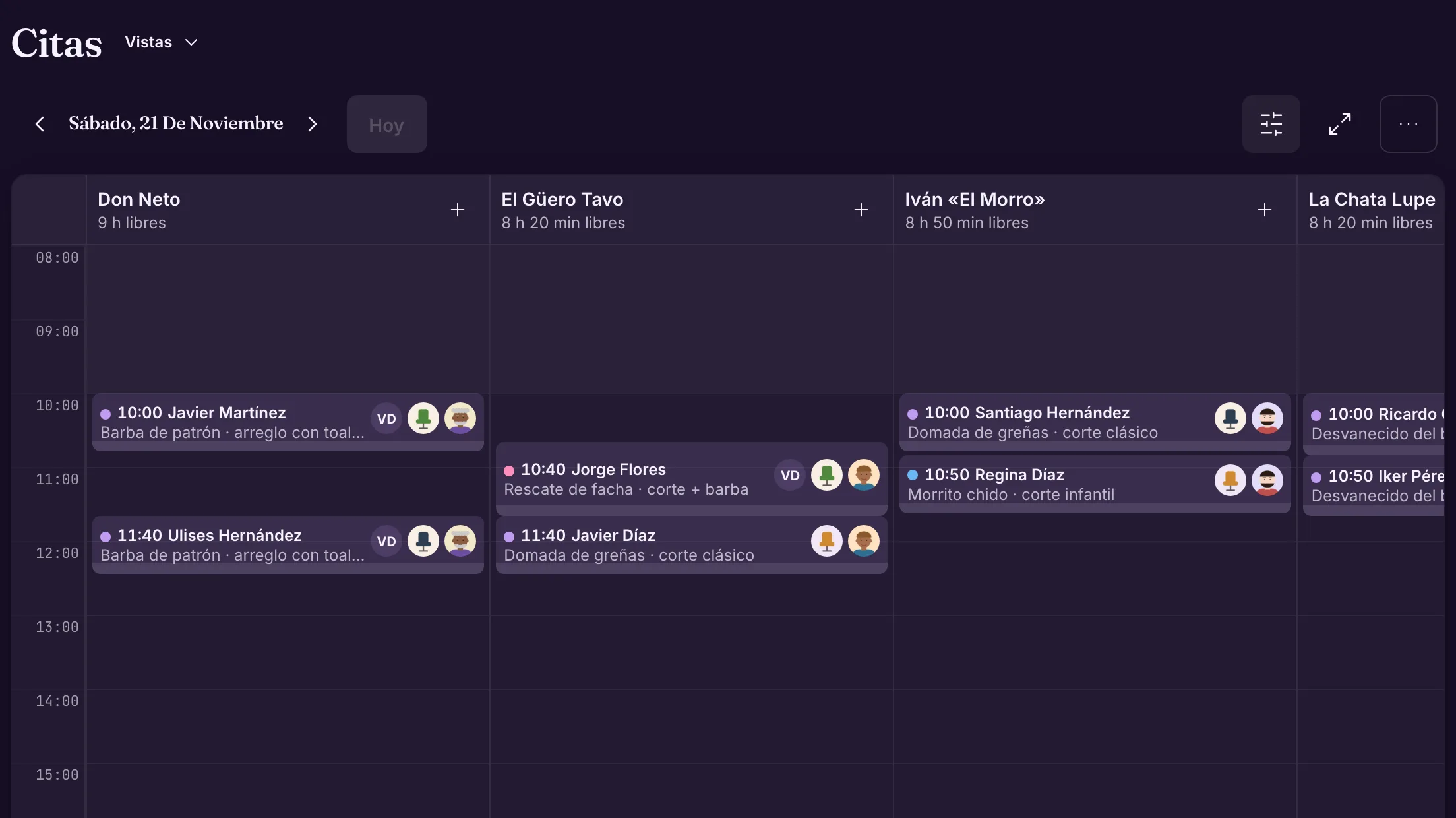
Calendar by month, week or person

The month shows each day's load. The week and the day by person show each professional or space in a column, with free slots and blocks.

Drag an order to another time, another day or another person, and stretch the edge to change the duration.

Example At Barbearia do Tavo, each barber has a column; the 3 pm cut moves to Nando with a drag.

More in the docs →

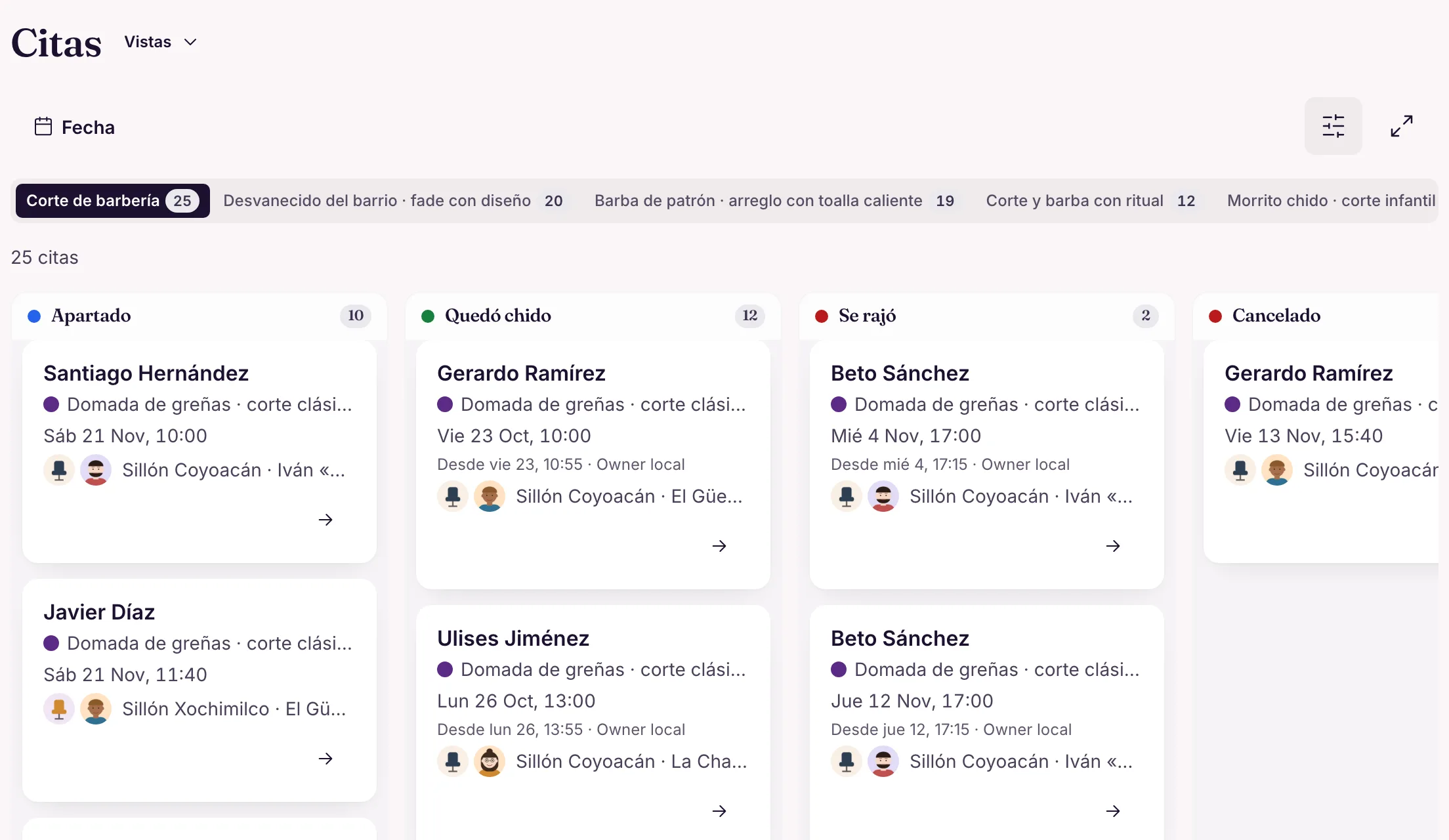
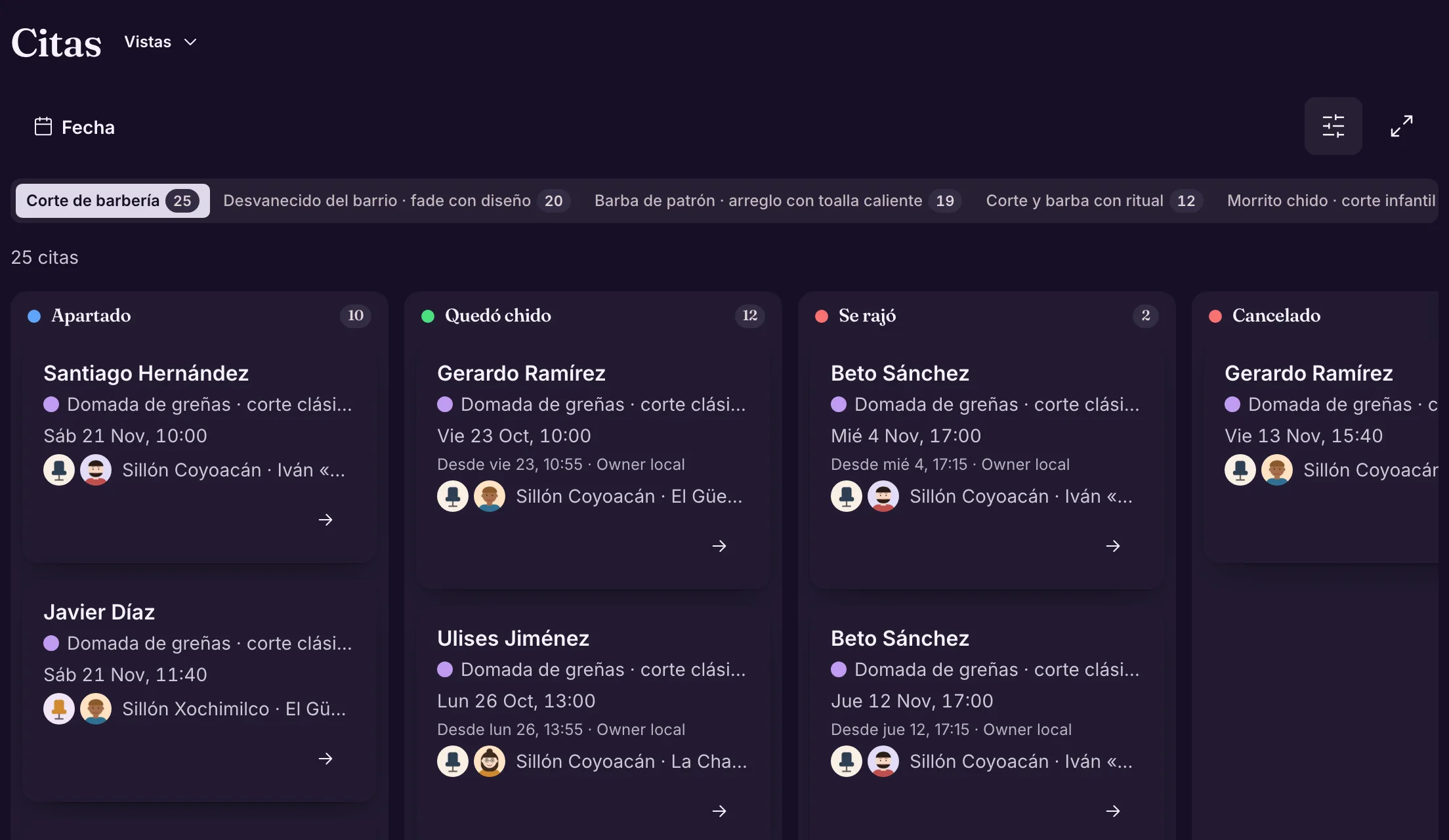
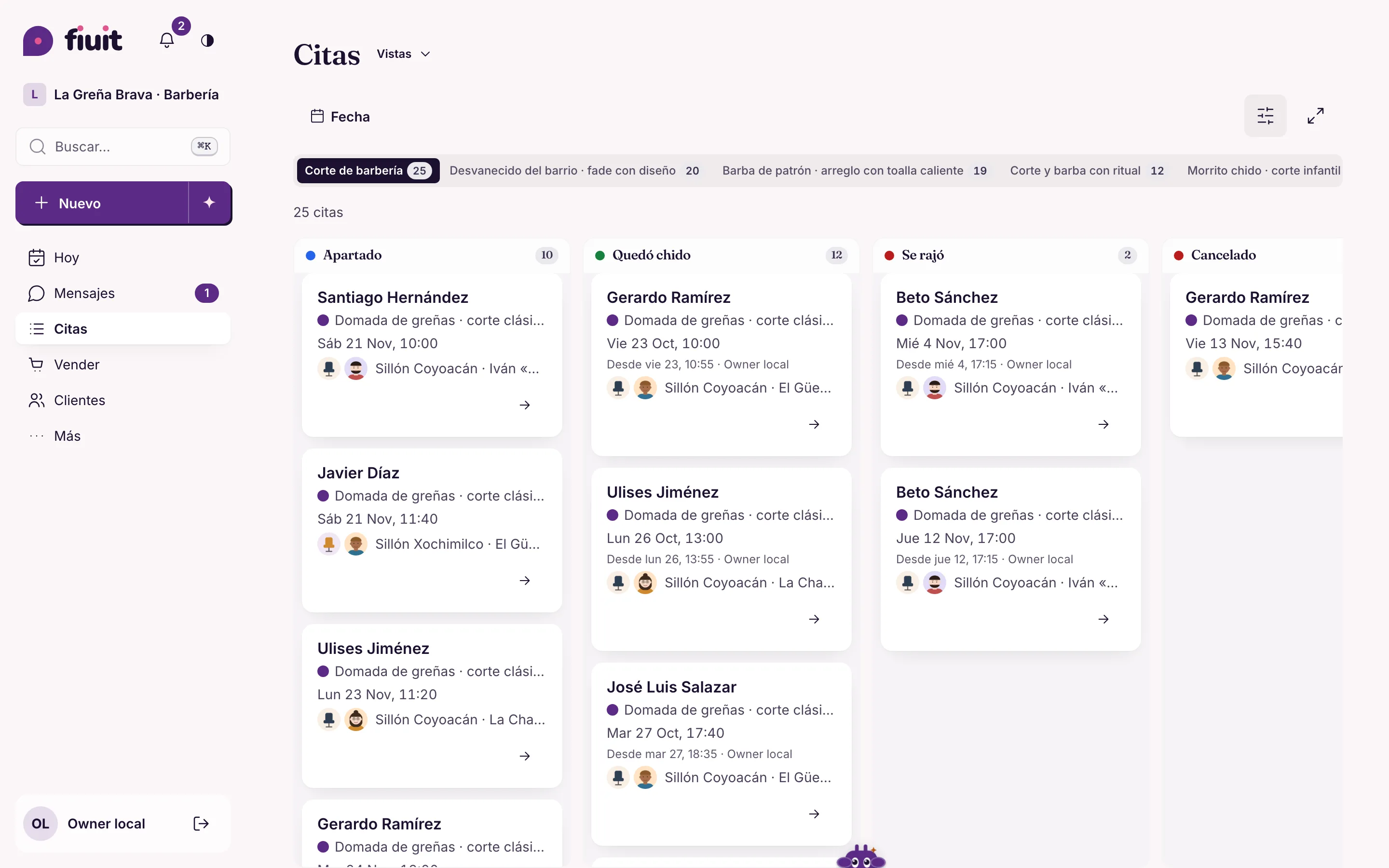
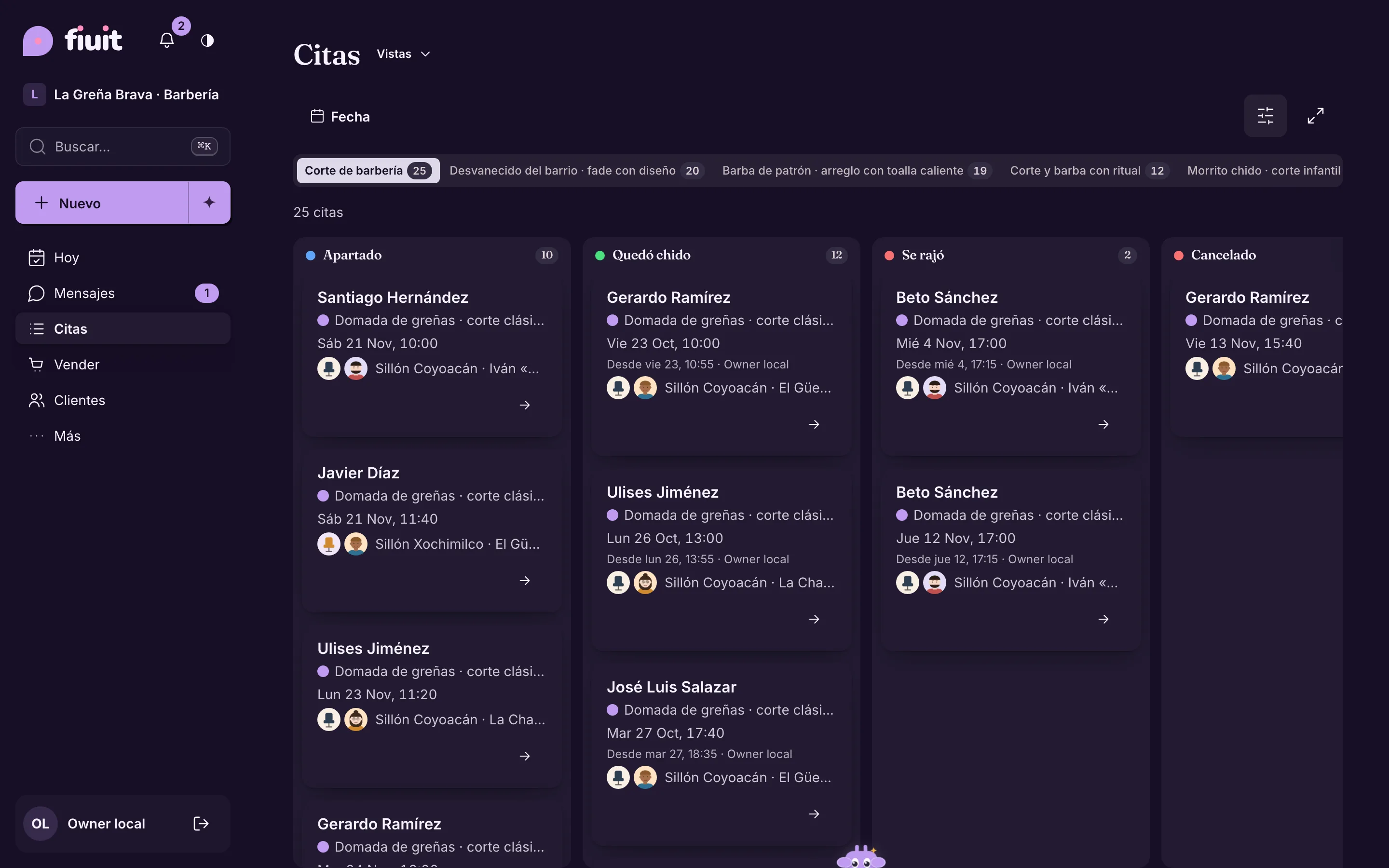
Kanban by stage

One column per flow stage (or per status, assignee, priority, service or tag), with a tab per flow and the real count in each column.

Dragging a card does the real action: it changes the stage or the assignee. Only the allowed columns light up.

Example At Auto Box 12, each car shows in the stage it's in: check-in, diagnosis, quote, service or delivery.

More in the docs →

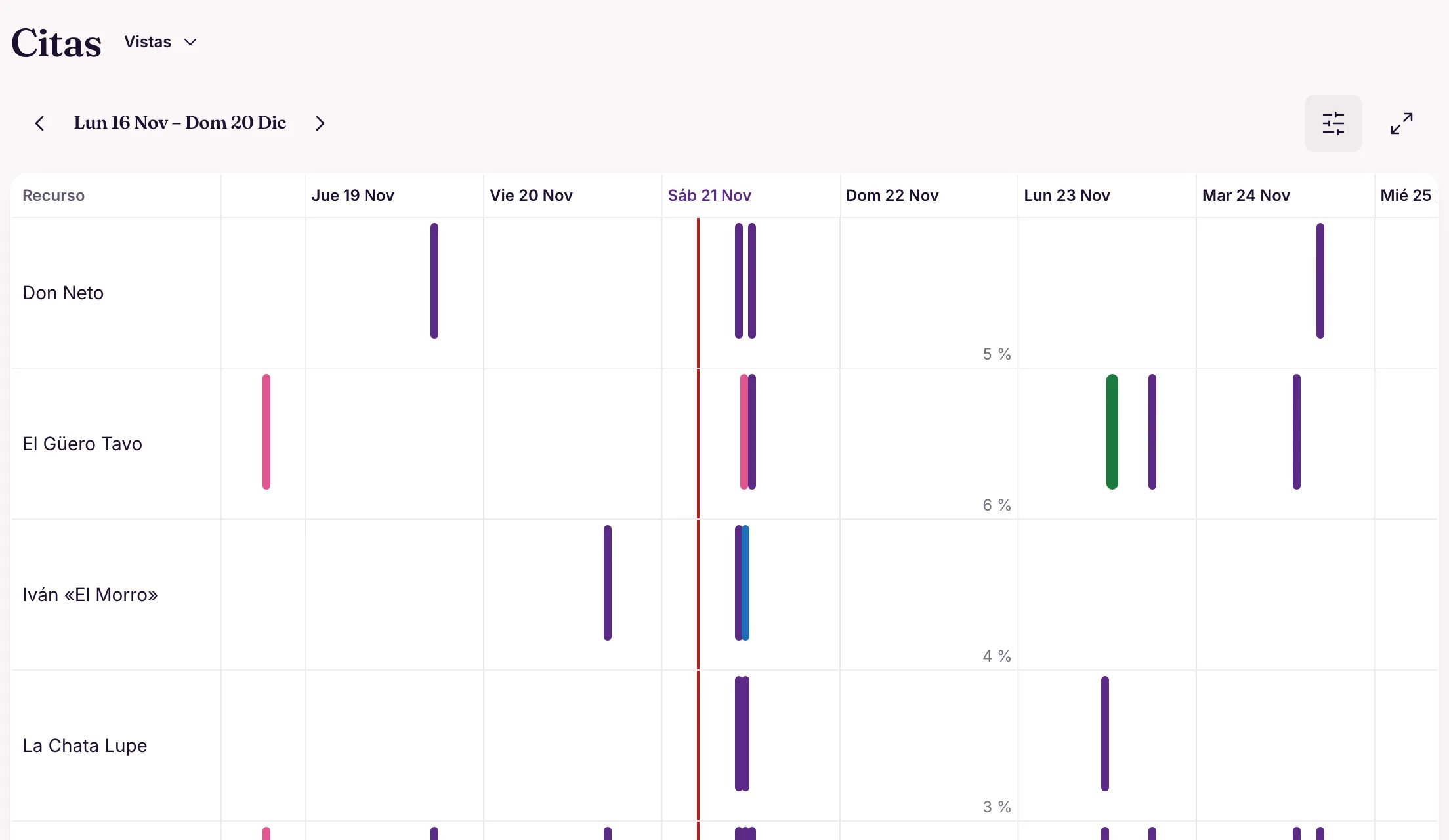
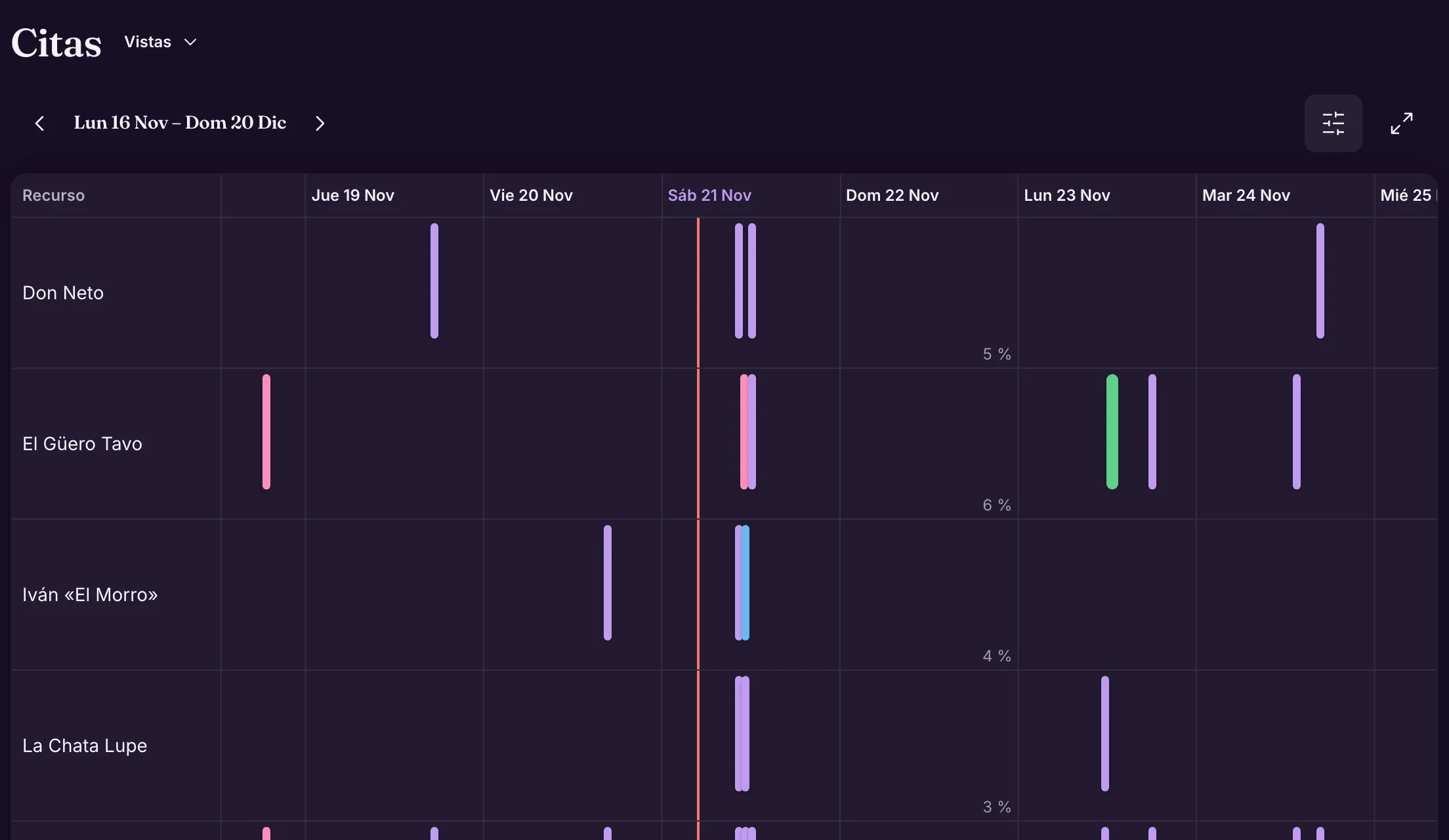
Timeline by resource

One row per person, bay, room or court, and one bar per order, with continuous zoom from one day to several weeks.

It shows what overlaps and who's free; drag or stretch the bar to reschedule.

Example At Auto Box 12, the four bays side by side show which lift is free in the afternoon.

More in the docs →

Map

Orders with an address become markers by status, with the zones drawn. With “Mine”, the markers are numbered in the order of your day.

For anyone who serves at the customer's home or delivers: see the day on the map before heading out.

Example Auto Box 12's tow truck sees the day's pickups on the map, numbered in the order of the Today list.

More in the docs →

Organize it your way

Filters that apply to every view, saved combinations for you or the team, and everyone with what's theirs.

Shared filters

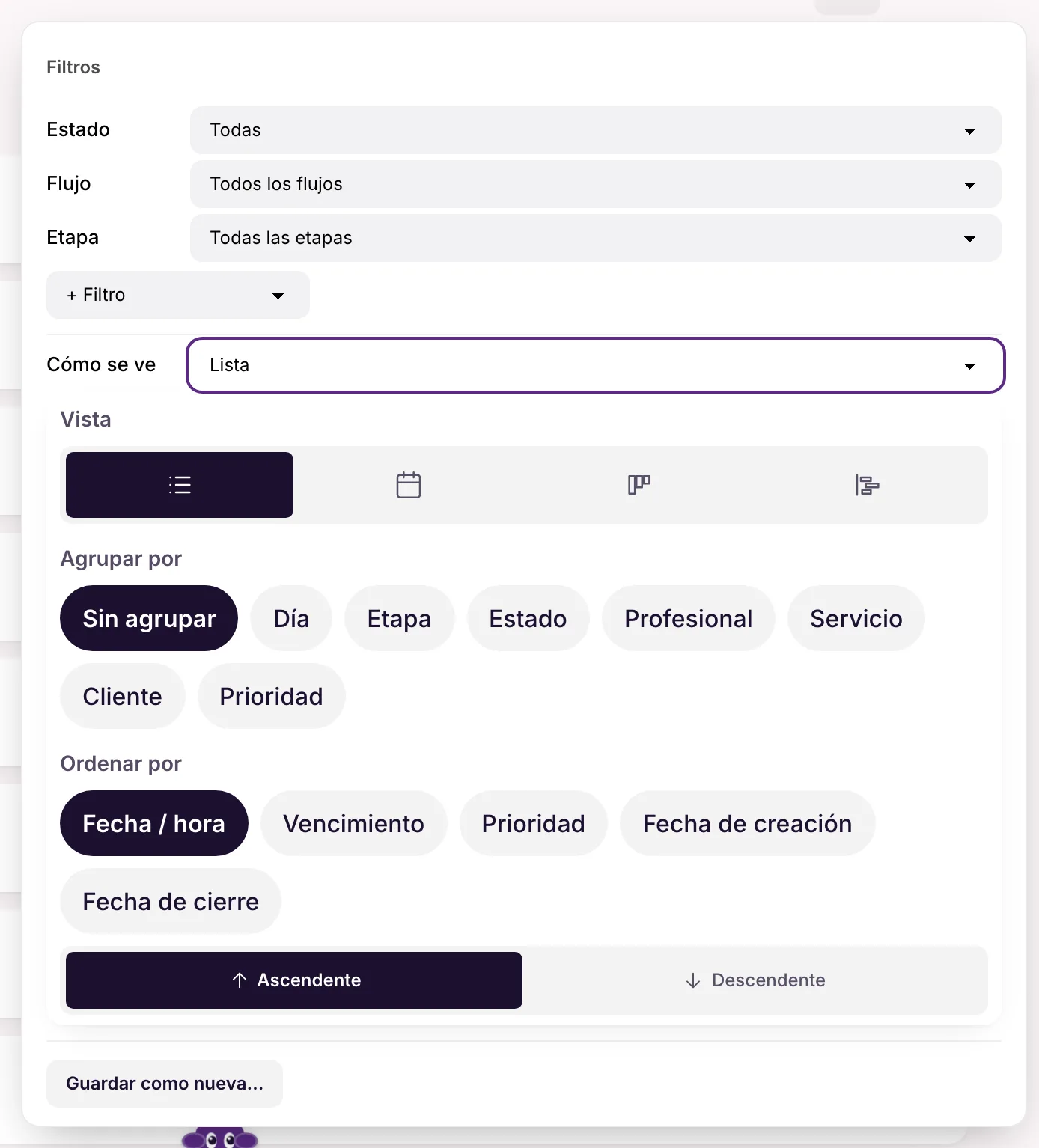
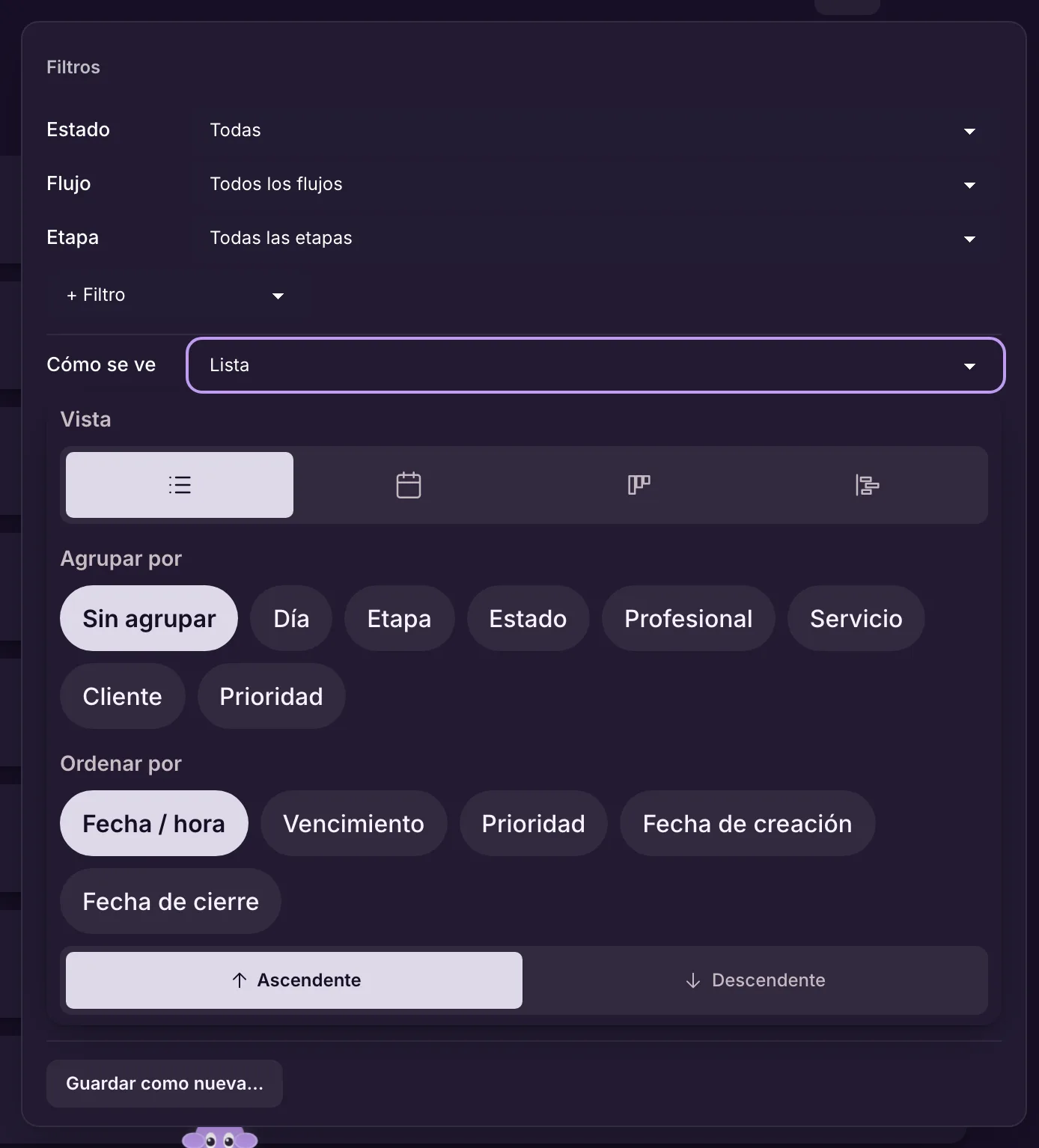
Status, dates (relative or fixed), flow and stage, plus assignee, zone, priority, tag, payment, overdue and search. They apply to every view.

Filter once and switch views: the filter comes along. In the same panel you choose how to group and sort.

Example Clínica Bem Viver filters “to be paid” this week and goes from the list to the calendar without redoing anything.

More in the docs →

Saved views, yours or the team's

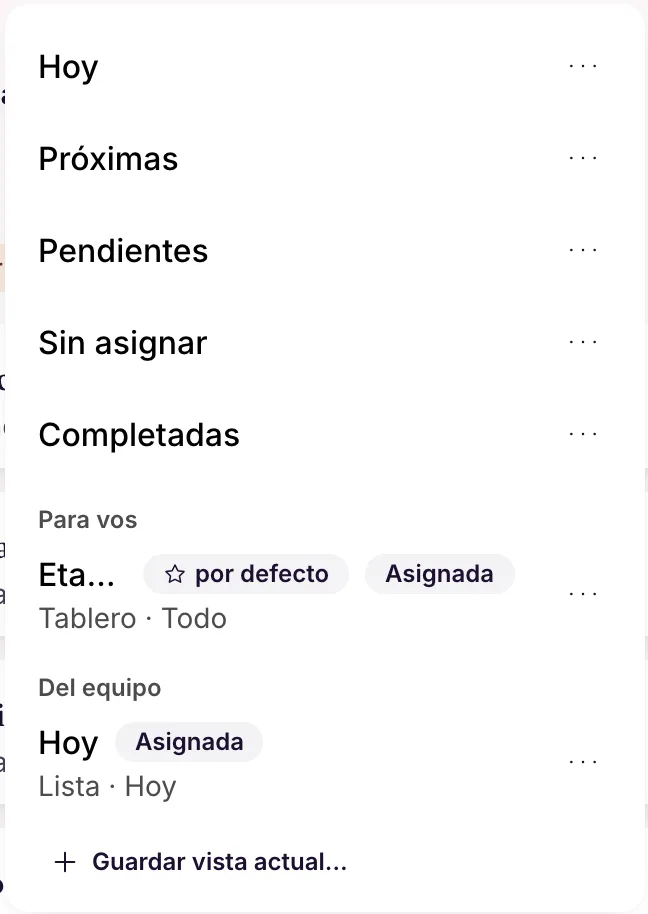
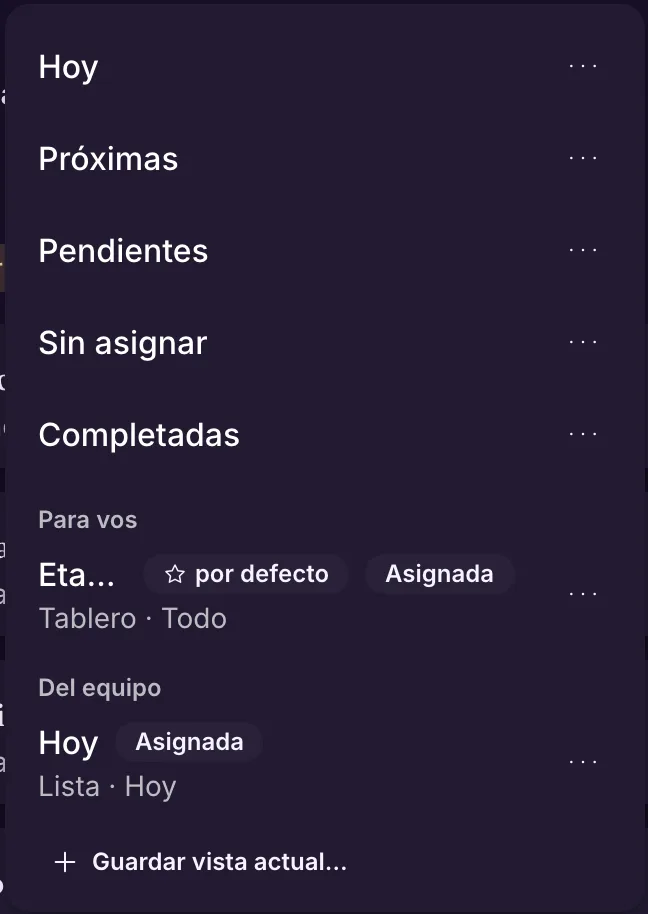
Save a combination of filters, layout, grouping and sort order under a name. Personal ones are only visible to you; team ones show up for everyone, and can open first for a role or a person.

Everyone opens the work already cut the right way, without building filters every morning.

Example At Auto Box 12, “Cars awaiting approval” is a team view that opens first for the receptionist.

More in the docs →

Everyone sees their own

Anyone with a team role sees only the orders of their resources (and the free ones they can take). The owner and the manager see everything, and switch between “Mine” and “All”.

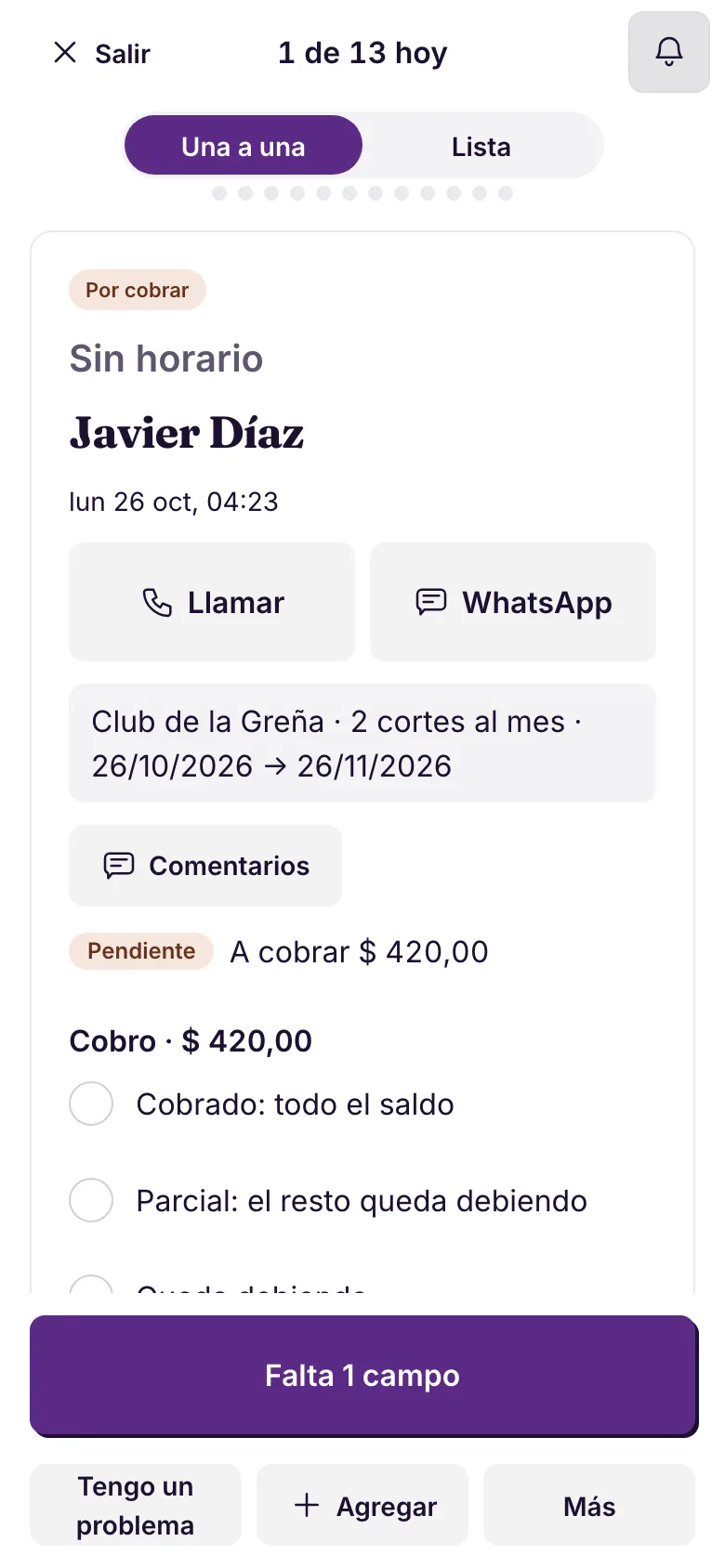
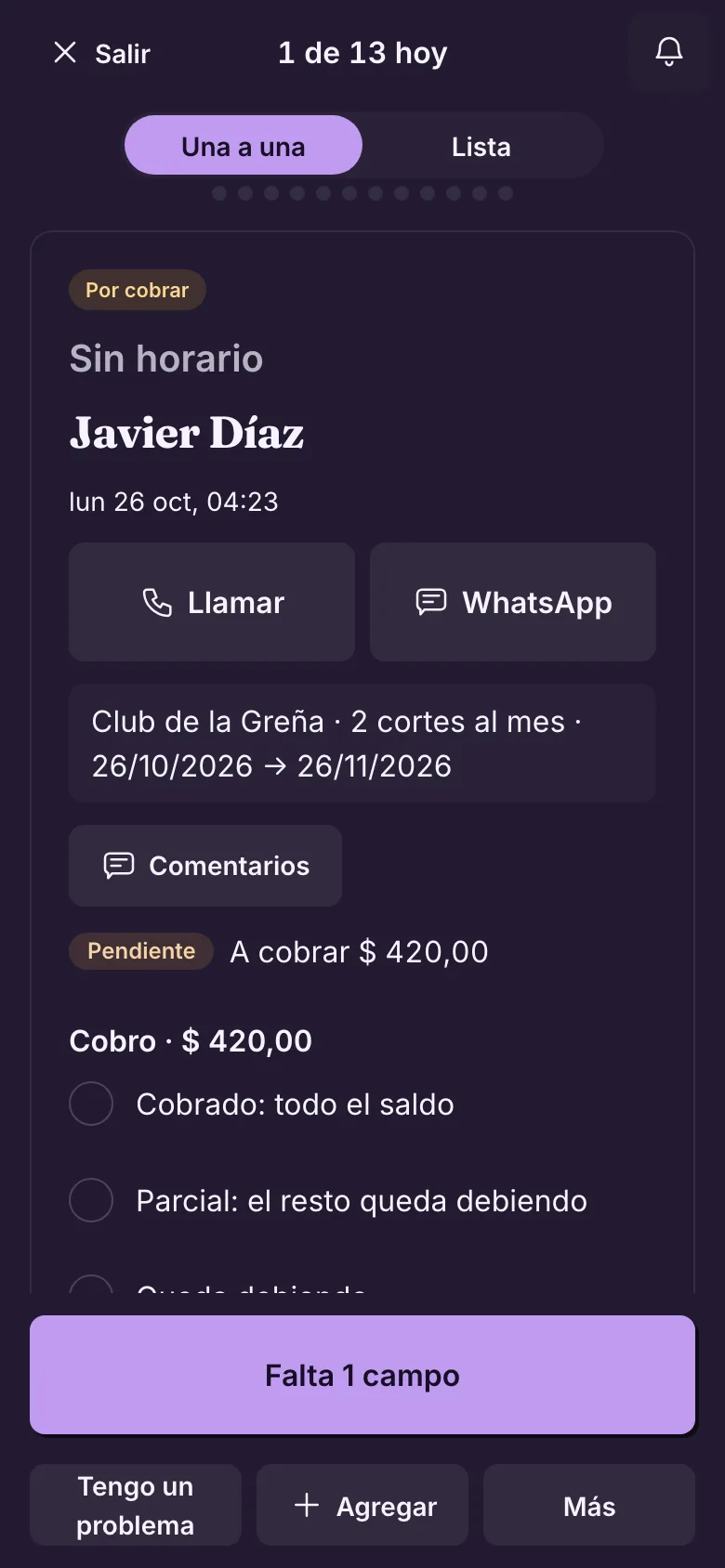
On the phone, Focus mode shows today's queue, one task at a time, with the next step, the payment and the route.

Example The mechanic opens Fiuit and sees only today's cars, full screen, one at a time.

More in the docs →